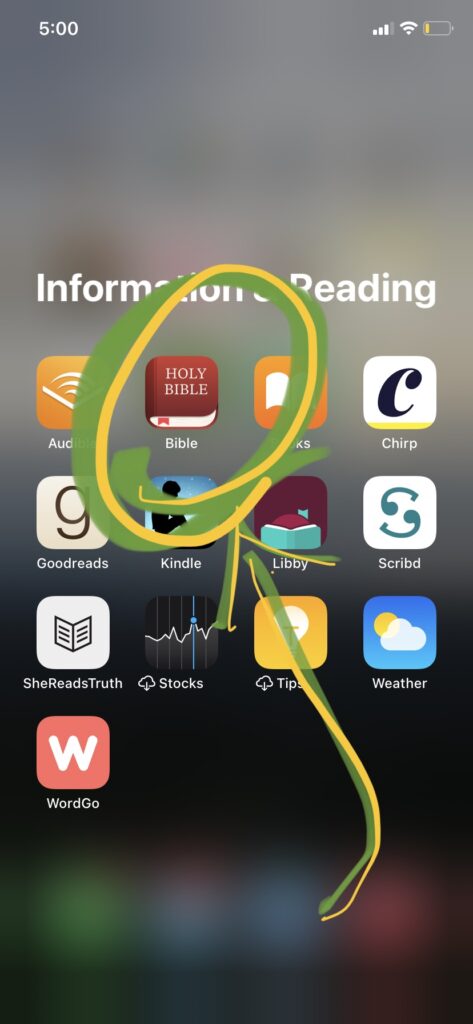
Open the BSF app (note: the BSF app is different from the WordGo app)
You may need to login. Use the same username and password you use for mybsf.org
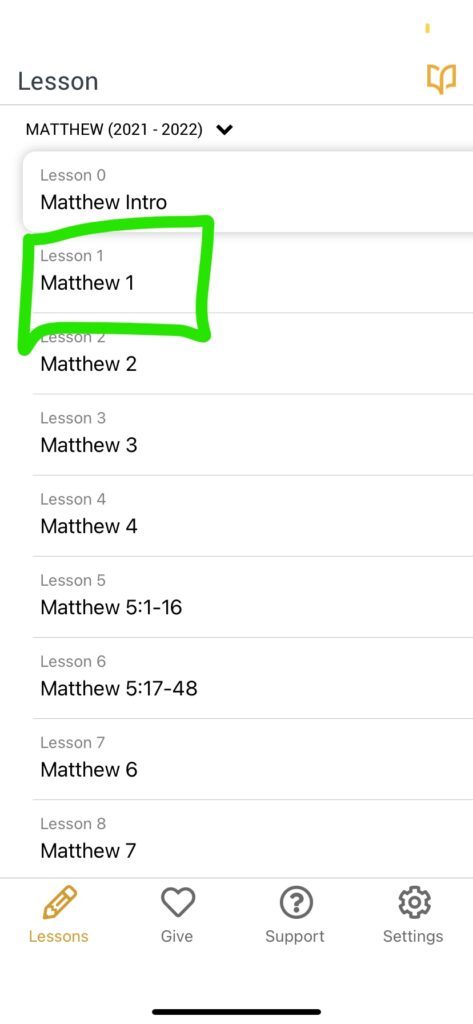
Select which lesson you want to work on
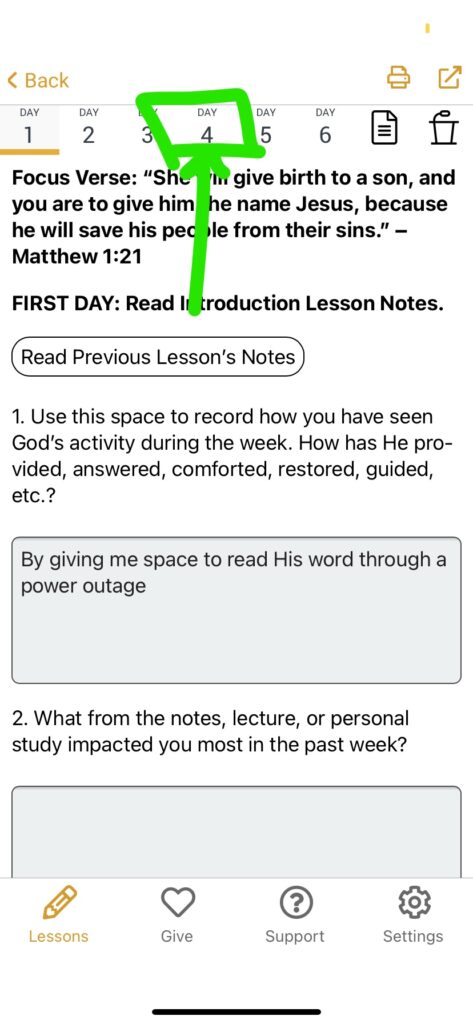
Click each day to see the questions
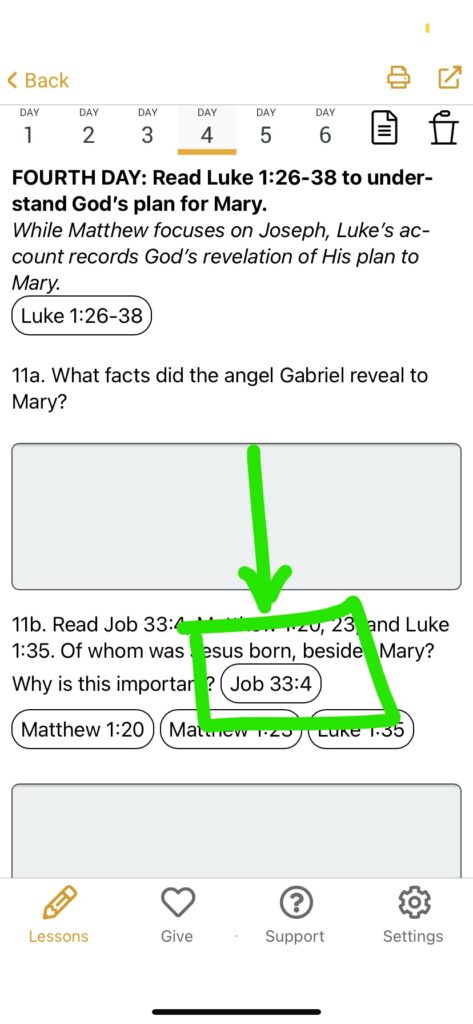
Click the button with the bible passage to see the full scripture (In this case, the button is for question 11b and says ‘Job 33:4’
Click the Notes button to read the full lesson notes. (In this case, the notes button is just to the right of the ‘Day 6 button’
Click the Lecture button to listen to the lecture. Note – it may send you to the MyBsf.org website to login and listen to it there. (In this case, the button is to the right of the Notes button, after Day 1-6)
‘Youversion’ Bible App
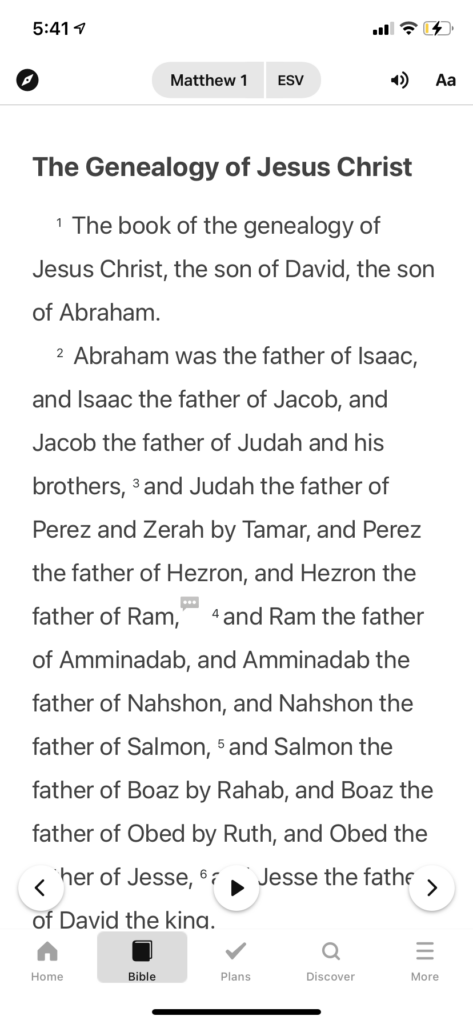
Open Bible App
Click the ‘Bible’ button at the bottom of the screen
Click the Book/Chapter book at the top of the screen to select a passage (in this example, the button says ‘Matthew 1’)
To create an image, click a verse to select it. (The verse will be underlined if it is selected)
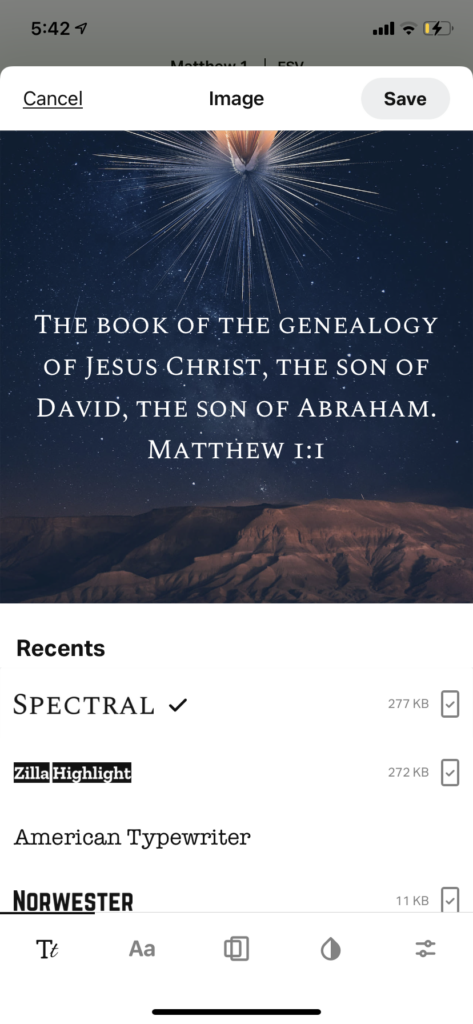
Click ‘Image’ from the options that are given
Click any background image to move to the next set of options
Experiment with the different options – font, size, color, etc